14 minutes
Unity Core CLI: 5 features I’m excited for
Unity projects already have a command line, but for a long time it has not felt like a product-shaped command line. Most teams that automate Unity eventually learn the older pattern: invoke the Editor executable directly, pass a pile of batchmode flags, call a static method inside the project, capture a log file, and hope the failure mode is easy to parse. It works, but it often feels like building a small adapter around the Editor rather than using a tool designed for automation.
The newer Unity CLI points at a better shape. The official docs describe it as “a standalone command-line tool for installing and managing Unity Editors and modules from a terminal.” That matters because the tool is separate from the desktop Hub experience, and because it starts to put common Unity workflow chores behind named commands: install an Editor, add modules, open a project, run tests, build a player, inspect the machine, and talk to a connected Editor.
One naming caveat belongs up front. Unity’s current documentation calls the tool Unity CLI, not “Unity Core CLI.” That title is still useful as a human label for the kind of thing Unity developers have wanted: a core terminal surface for daily Unity work. It should not be confused with the Unity Gaming Services CLI, and it is not the same thing as the older Unity Editor command-line argument page. The tool is also marked experimental in the docs, so exact syntax should be checked against unity --help on the installed version before turning any of this into production automation.
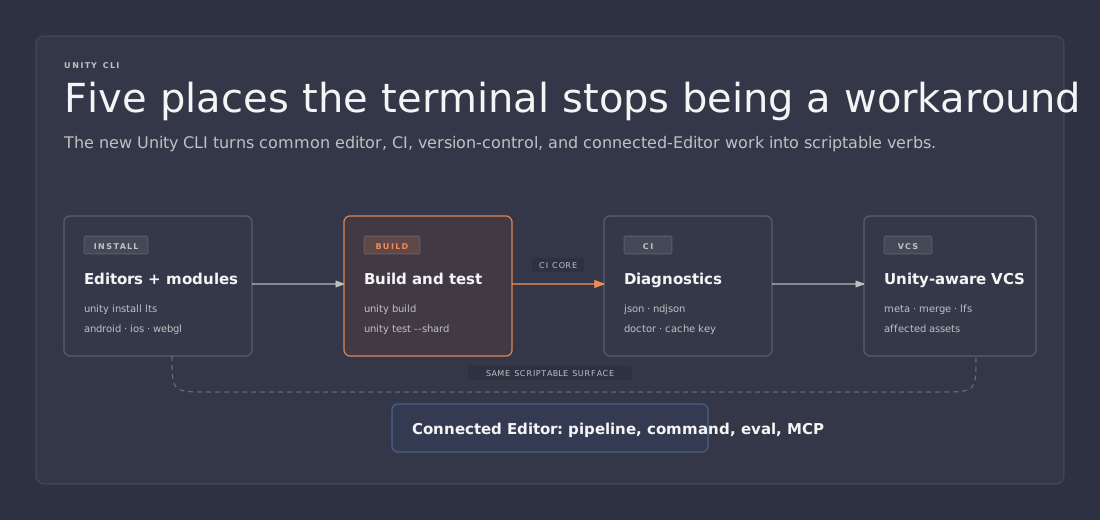
With that caveat in place, there are five areas that look genuinely useful for Unity teams.
1. Scriptable Editor and module installation
The first feature is the least glamorous, which is usually why it matters. Installing the right Unity Editor version on a fresh machine should not be a ceremony. A developer workstation, a CI runner, a build VM, and a temporary test box all need the same basic ingredients: a specific Editor version and the modules required by the target platforms.
Historically, that often meant using Unity Hub manually, scripting around Hub, or baking large machine images that go stale. The Unity CLI gives that workflow a cleaner terminal surface:
unity install lts
unity install 6000.3.7f1
unity install 6000.3.7f1 -m android --cm
unity install lts -m ios android webgl
unity install-modules -e 6000.3.7f1 -m ios android
unity editors -i
There are a few details in that small command set that are easy to understate. Version aliases such as lts, latest, and major/minor streams make scripts less tied to a hardcoded patch version when that is what the workflow wants. Exact versions still exist for reproducible agents and release branches. Modules can be added at install time or later with install-modules. The --cm or --childModules option is there for cases such as Android, where the module is not useful unless the SDK and NDK pieces come along for the ride.
That is a better division of labor. The build script should declare what it needs. The machine should be able to become that machine from a terminal. The person reading the script should not have to know which Hub screen would have been clicked.
For teams that maintain multiple Unity versions, unity editors -i and unity editors default [version] are also useful because they make installed Editor state visible. A broken CI machine often starts with something boring: the wrong Editor version, a missing platform module, or a default Editor pointing at an older install. The sooner that state can be listed and checked by a script, the less time gets wasted reading a 20,000-line Unity log.
The best version of this feature is not a fancy one-click setup. It is a boring bootstrap script that a new runner can run without a human sitting beside it. Unity projects have enough moving parts already. Editor installation should not be one of the mysterious ones.
2. Build and test commands that read like the job
The second feature is the one most CI setups will notice first. Unity automation usually ends up with a wrapper script named after the thing the team wanted in the first place: build, test, smoke test, export Android, run Edit Mode tests. The wrapper calls Unity in batchmode, invokes a project method, and maps the result back into whatever CI system is watching.
A CLI command named unity build or unity test is a cleaner starting point:
unity open ./MyProject
unity build
unity test
unity run
A named command does not remove the need to understand Unity’s build pipeline. It does remove some of the accidental complexity around reaching it. When the CLI owns the verb, it can own the boring behavior that every team otherwise has to rediscover: consistent flags, predictable output, better exit codes, and CI-friendly defaults.
The build provenance work is the part worth watching. Unity’s release notes describe a provenance manifest written next to build output, recording the Editor version, resolved package set, build target, Git revision, and timestamps. The notes also say the manifest is written for failed builds and leaves out paths, credentials, and machine-identifying details.
That is exactly the kind of artifact a build should leave behind. A failed build without provenance is a mystery. A passed build without provenance is only slightly better, because the team still has to answer what was actually built. The useful question is not only “did it pass?” The useful question is “what ingredients produced this result?”
Test support is also moving in the right direction. The documented and release-note surface includes unity test, NUnit report output, sharding with --shard N/M, retries with --retries N, and failed-test reruns with --rerun-failed. Those features sound mundane until a project has thousands of Play Mode and Edit Mode tests fighting for time on shared runners.
Sharding matters when a single test job becomes the longest pole in the pipeline. Retries matter when the team is separating real failures from a small number of flaky tests. Rerunning failed tests matters because it can produce a tighter signal than rerunning everything. None of those features make bad tests good. They do give the pipeline a more practical set of controls.
Exit codes are part of the story too. The reference docs distinguish test failures from other operation failures. Exit code 8 is used when tests ran and one or more failed; exit code 6 covers cases where the primary operation failed or a build/test run did not finish. That distinction lets CI report a failed test suite differently from a broken runner, missing license, or crashed Editor. A small difference, but small differences are what make automation trustworthy.
3. Output formats and diagnostics that belong in CI
Unity logs are useful, but they are not an API. A human can read them. A script can grep them. Neither of those is the same as a command-line tool promising machine-readable output.
The Unity CLI docs list several output formats:
unity editors -i --format json
unity editors -i --format tsv
unity install lts --format ndjson
unity install lts --format github
The shape matters. human output is for terminals. tsv is useful when output is piped or saved. json gives a structured envelope with fields such as success, command, data, errors, and warnings. ndjson works better for long-running commands because progress can be emitted as a stream of JSON objects. github maps messages into GitHub Actions annotations like ::error:: and ::warning::.
That sounds like normal CLI behavior because it is. Unity getting closer to normal CLI behavior is the point.
A good CI command should be quiet when asked, structured when piped, and explicit when it fails. The docs also call out environment variables such as UNITY_FORMAT, UNITY_QUIET, UNITY_NO_BANNER, UNITY_NON_INTERACTIVE, UNITY_PROJECT_PATH, and UNITY_BUILD_TIMEOUT. Those knobs are useful because CI configuration often wants policy outside the command itself. A job can set UNITY_NON_INTERACTIVE once, then every Unity CLI call in that job inherits the rule.
The diagnostic commands are the other half:
unity doctor
unity doctor --ci
unity cache key
unity env
unity logs
unity diagnose
unity doctor --ci is the standout. The release notes describe it as checking whether a machine can finish a build or test run, including license, required Editor, disk space, and network reachability. That is the kind of command a pipeline should run before spending twenty minutes starting a build that had no chance of completing.
unity cache key is another practical detail. A Unity Library cache is only useful when the key matches the things that make the cache valid. The release notes say the key is derived from the Editor version, resolved package set, and build target. That is the right neighborhood. A cache key based only on branch name or commit hash tends to be either too broad or too narrow. A Unity-aware key gives the CI system a better chance of avoiding stale imports without throwing away every cache.
The exit-code table also helps automation. A retryable Unity service failure can be treated differently from a usage error. A configuration-required error can point the maintainer toward setup instead of source changes. A SIGTERM from the runner should not be reported as a Unity test failure. These distinctions are boring until the night a release build fails and the only message is “process exited with code 1.”
4. Version-control commands that understand Unity projects
The version-control commands may be the most Unity-specific part of the CLI. Generic Git can tell a team which files changed. It cannot always explain what those changes mean inside a Unity project.
Unity projects carry their own version-control problems: .meta files, GUID pairing, scene and prefab YAML, Git LFS for binary assets, UnityYAMLMerge setup, branch switching that triggers expensive reimports, and pull requests where the meaningful change is hidden behind file IDs.
The CLI’s vcs surface points directly at those pain points:
unity vcs status
unity vcs doctor --fix
unity vcs merge-setup
unity vcs diff Assets/SomePrefab.prefab
unity vcs affected
unity vcs switch feature/some-branch
unity vcs git migrate-lfs
This is where a Unity-aware tool can beat a generic script. unity vcs status can group changes by Unity meaning and identify .meta pairing problems. A missing or mismatched .meta file is not just another changed file; it can break references across the project. Catching that early is worth more than a prettier status view.
unity vcs merge-setup is another useful example. Scene and prefab merges are painful enough without each developer configuring the merge tool differently. A one-command setup for UnityYAMLMerge lowers the odds that two machines treat the same conflict in two different ways.
The diff command is the one that sounds most useful for code review. A normal prefab diff often exposes fileID noise and YAML structure before it exposes the thing a reviewer cares about. The release notes describe unity vcs diff <path> as reading scene and prefab changes by GameObject and component name instead. That is a much better review unit. A reviewer wants to know which component changed, not decode serialized object trivia by hand.
unity vcs affected could become useful in larger projects. If a change can report which prefabs, scenes, assets, or tests are impacted, teams can make better choices about targeted validation. It will not replace full test runs before release, and it should not become an excuse to skip broad checks. But as a local or pull-request signal, “what did this change probably touch?” is a question Unity is better positioned to answer than plain Git.
There is also practical value in unity vcs switch <branch> reporting expected reimport cost before switching. Anyone who has bounced between large Unity branches knows the pain: a small code review can turn into an import penalty because asset state changed under the project. A warning does not remove the cost, but it lets the developer make an informed choice instead of discovering it after the switch.
This section deserves the largest caveat. Much of this VCS surface appears in recent beta release notes, and the whole CLI is experimental. It should be treated as promising, not as a settled contract. Still, it is the right kind of promise: Unity-specific automation for Unity-specific version-control problems.
5. Connected Editor automation through Pipeline, commands, eval, and MCP
The fifth feature points beyond CI. Installing Editors and running builds are obvious automation targets. The more interesting daily workflow is what happens when the CLI can talk to a running Editor.
Unity’s Pipeline package is described as a way to “Control the Unity Editor remotely through a local HTTP API to automate builds, tests, and development workflows.” The documented flow starts with authentication, then installing and listing the Pipeline package:
unity auth login
unity pipeline install
unity pipeline list
Once the Editor is connected, the CLI surface includes commands such as:
unity status
unity list
unity command
unity command <name>
unity command <name> --detach
unity eval <expr>
unity job status
unity job wait
unity job cancel
That shape is interesting because it gives tooling a path into the Editor without pretending the Editor is not there. Some Unity work belongs inside the Editor process. Asset database operations, project-specific menu commands, certain validation steps, and custom tools often need the actual project context. The older answer was usually another -executeMethod wrapper or an editor script wired into a menu item. A connected command surface could make those jobs easier to discover and easier to run.
unity list is a small command with a big implication: list every tool a connected Editor registers, with parameter schema. That gives local tools and AI agents a way to ask “what can this project do?” instead of relying on tribal knowledge. It also nudges teams toward named, registered operations instead of one-off scripts hidden in a folder.
The MCP angle is worth mentioning carefully. Unity’s docs say the MCP server included in the in-Editor AI assistant package has been deprecated, and that the unity mcp command in Unity CLI replaces it. They also say unity command and unity eval drive the Editor directly without MCP, and that those direct commands are faster and use fewer tokens than MCP for that job.
That is the right framing for most developers. MCP is useful when an agent needs a tool protocol. Direct CLI commands are better when a script already knows what it wants. The exciting part is not “AI can now touch Unity.” The exciting part is that Unity appears to be defining a clearer local automation boundary: install the Pipeline package, expose commands from the Editor, call them from a terminal, and manage detached jobs when the work takes time.
For teams building custom validation tools, content checks, import audits, or one-button release chores, this could be the difference between a tool that only works from one developer’s menu bar and a tool that works from a terminal, a CI job, or an agent with the same command name.
A measured caveat: experimental means verify before depending on it
The reason to be excited is not that every command listed above should be dropped into production today. The official docs mark Unity CLI as experimental, and several of the most interesting pieces are described in beta release notes. That means two habits are mandatory.
First, check the installed CLI, not only the web docs:
unity --help
unity build --help
unity test --help
unity vcs --help
The docs themselves point developers toward unity --help as the source that matches the installed version. That matters for beta tooling. A blog post, CI template, or team wiki can go stale faster than the command line installed on the runner.
Second, introduce the CLI at the edges before making it the foundation of the whole pipeline. Editor installation on a disposable runner is a good early target. unity doctor --ci before an existing build is another. Structured output for one inspection command is low risk. Replacing every build, test, VCS, and Editor automation script at once is how a promising tool becomes tomorrow’s outage.
There is also a naming risk. “Unity Core CLI” is not the official documentation label found during research. The article title can keep that phrase because it describes the idea people are reacting to: a central command-line layer for Unity work. The body should use Unity’s own name, Unity CLI, so readers can find the docs and avoid mixing it up with Unity Gaming Services CLI or older Editor arguments.
The useful posture is cautious optimism. Unity teams already script these jobs. They already install Editors on runners, run tests in batchmode, parse logs, configure YAML merge, manage Library caches, and call custom Editor commands. The Unity CLI is exciting because it names those jobs directly. If it keeps moving in this direction, the terminal can become less of a workaround and more of a supported part of the Unity workflow.
References
- Unity CLI overview: https://docs.unity.com/en-us/unity-cli/unity-cli.md
- Install and use Unity CLI: https://docs.unity.com/en-us/unity-cli/use-unity-cli.md
- Unity CLI command reference: https://docs.unity.com/en-us/unity-cli/unity-cli-reference.md
- Unity CLI release notes: https://docs.unity.com/en-us/unity-cli/release-notes.md
- Unity Pipeline package: https://docs.unity.com/en-us/unity-production-pipeline/local-tools-cli/unity-pipeline-package.md
- Replacing the deprecated in-Editor MCP server with Unity CLI: https://docs.unity.com/en-us/unity-cli/replace-mcp-server-unity-cli.md